

What is this feature?
Single Sign-On (SSO) allows you to access Playlab using your existing authentication credentials without creating a separate account. This streamlines the login process and helps maintain security across your educational or organizational tools. Playlab currently supports two SSO options: Google SSO (available to everyone) and Clever SSO (available to organizational partners), making it easy to integrate into your existing workflow and classroom environment.Watch How to Use Single Sign-On
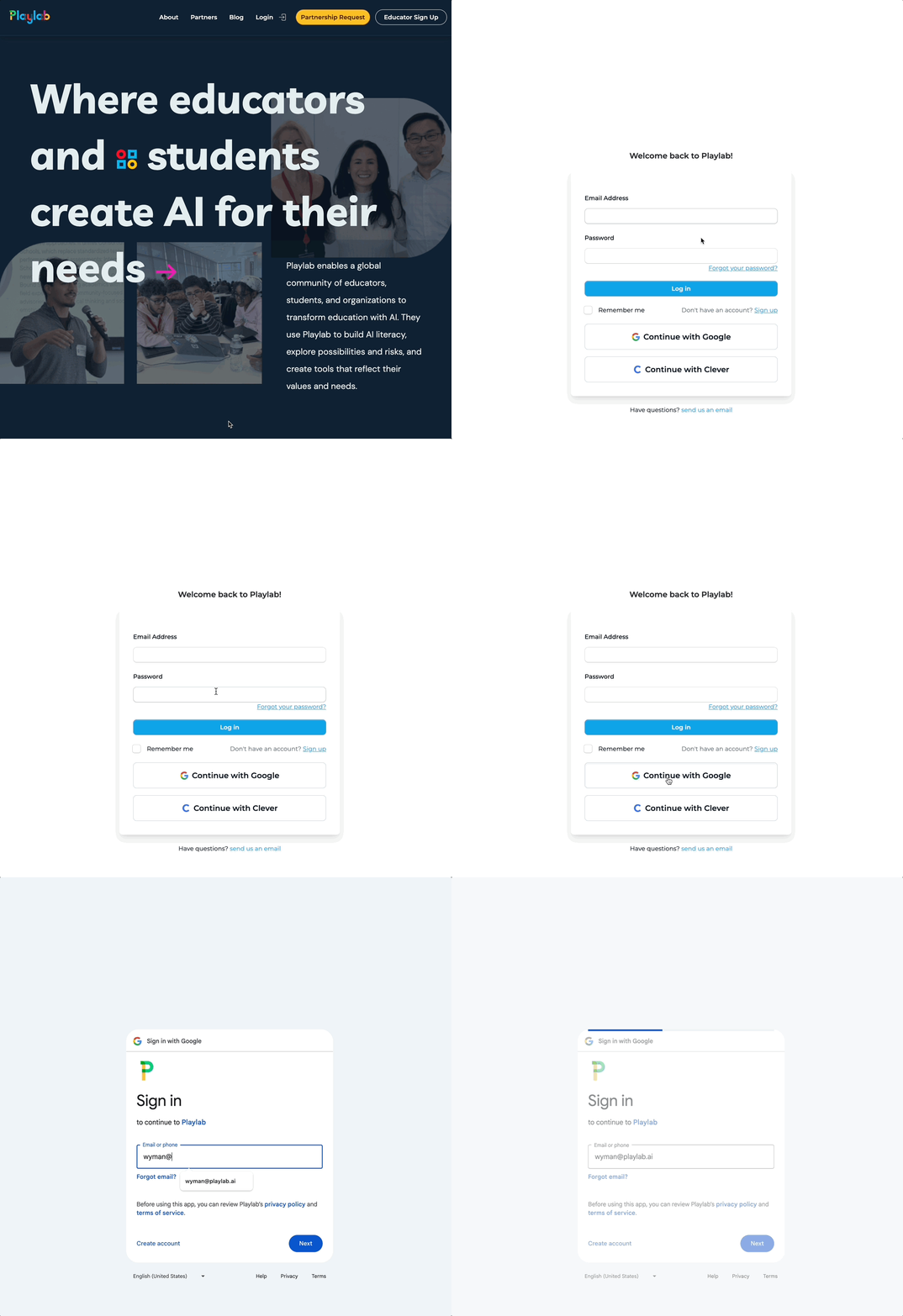
Accessing Playlab with Single Sign-On Authentication
Why Use Single Sign-On
Streamlined access
Log in to Playlab instantly using your existing Google or Clever credentials without remembering additional passwords.
Enhanced security
Leverage your organization’s security policies and authentication standards for consistent protection.
Classroom integration
Seamlessly integrate Playlab into your existing educational technology ecosystem with Clever dashboard visibility.
How to access Playlab with SSO
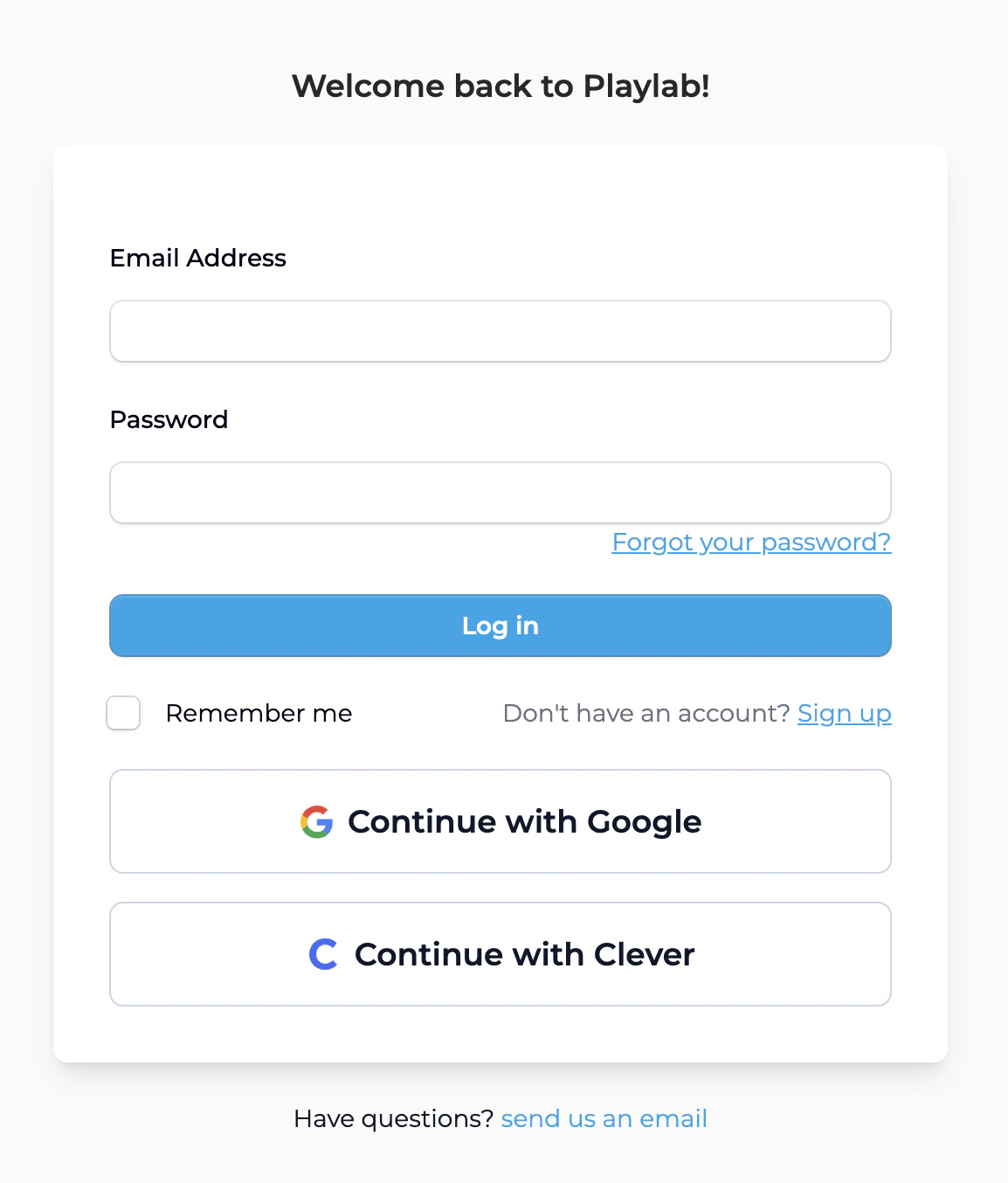
SSO Options Available
Google SSO - Universal Access
- Available to all users immediately
- Uses your existing Google account for authentication
- Maintains your personal workspace and projects
Clever SSO - Playlab Partners
- Available through the Clever dashboard for partner districts
- Automatic organizational structure creation
- Role-based access control for educators and students
Playlab + Clever Rostering Set Up Guide
Easier logins. Automatic rosters. No manual updates.Why Set Up Clever Rostering?
Clever rostering creates a seamless connection between your district’s existing student information system and Playlab. Once it’s set up:- Instant access – Students, teachers, and admins sign in with a single click through their Clever dashboard (no new usernames/passwords).
- Always up to date – Rosters update daily, so new students and staff are added automatically, and removed users are disabled without manual work.
- Accurate permissions – District admins, teachers, and students automatically get the right access levels.
- No duplicate data entry – All information flows directly from your SIS through Clever to Playlab.
- Consistent across schools – Each school gets its own Playlab organization with the correct sections and assigned teachers.
How Accounts Will Be Set Up
When Clever rostering is enabled:- Each synced school will appear as its own organization in Playlab.
- District admins will have admin rights in each organization.
- Teachers and staff will have creator accounts to build and manage apps.
- Students will have explorer accounts (can use apps, not create them).
- Sections in Clever will be matched to sections in Playlab, and if teacher data is available, ownership of those sections will be assigned to the correct teacher.
How the Process Works
Info We Need to Get Started
To begin the Clever integration process, please provide:
- What schools should have access to Playlab?
- What student grades do you want to give access to Playlab?
Accept Our Invitation to Your District
We will contact your Clever admin with an invitation to sync the district’s info with us. Through the invitation they will be able to:
- See what data we will receive from the district
- Customize what data gets shared
Sync and Test
Once you accept the invitation and we are notified, we will set up the sync on our end. Please account for up to 24 hours for us to schedule and run the sync.Once we have done so, you should be able to log in to Playlab by signing in via Clever, and should see organizations corresponding to all the schools you have shared with us. Each organization should have teachers, staff members, and students based on the information on Clever.Note that as you update information on Clever, these changes will affect Playlab within 24 hours. We run a daily sync between the data on Clever and the data on Playlab. Users may be disabled if they are no longer shared with us, but organizations will not be removed.
What You’ll See Once Connected
- Playlab icon in Clever for all synced users
- District admins with admin rights to all organizations
- Teachers/staff with creator accounts
- Students with explorer accounts
- Sections in Playlab matching Clever rosters (teacher ownership applied where possible)
- Daily updates for roster changes (additions, removals, section changes)
Tips for Using SSO
Best Practices
- Choose the right option: Use Google SSO for individual access, Clever SSO for educational district integration.
- Understand permissions: Familiarize yourself with the access levels provided by your SSO method.
- Leverage organization structure: Take advantage of automatic section creation in Clever SSO for classroom management.
- Maintain security: Follow your organization’s guidelines for account security and access management.
- Explore dashboard integration: Use the Clever dashboard as your central hub for accessing educational tools including Playlab.